Marketing handoffs / Customer surface copy and design
Tangible customer surface copy and design handoff
This is a working checklist for the customer-facing consent, purchase, email, and plugin setup screens. Allison can revise the words and open the relevant PRs or edit the named email surface. Julia should review the visual treatment, especially the marketing and telemetry consent screens and the final plugin setup screen. The screenshots show observed states, not a guarantee that every state is already live in production.
How to use this document
- Use the screenshot as the visual record. “Current words” quotes the main visible strings; dynamic values and cropped email lines should be checked in the live editor before publishing.
- Code changes go to these GitHub repositories: TangibleInc/tangible-one (app and email templates), TangibleInc/framework (shared WordPress setup, including the default Done step), and TangibleInc/tangible-searchsync (SearchSync-specific setup). Paths below are relative to the named repository.
- For every change, verify both the yes and no paths, the absence of duplicate asks, and the promised reward before shipping copy.
- The last section lists states that were not captured. Do not treat an empty screenshot slot as an approved design.
First review pass
- Unify the 20 percent offer wording across the wizard, checkout checkbox, Bento emails, and confirmation page. The checkout checkbox currently omits the reward.
- Rewrite the three Bento emails and decide the sender identity. The captured staging messages use plain default formatting and a “Gabriel” sender.
- Review plugin telemetry and marketing consent together. The free plugin email field remains visible after “No”; the plugin ask currently promises release notes, while the app asks about product news and discounts.
- Keep the reset password path focused on account recovery. The purchase and checkout success screens can be reviewed as general customer communication without adding a new marketing ask by default.
1 Terms acceptance on first sign in
Capture Captured from the staging consent wizard preview, not a signed-in production visit.
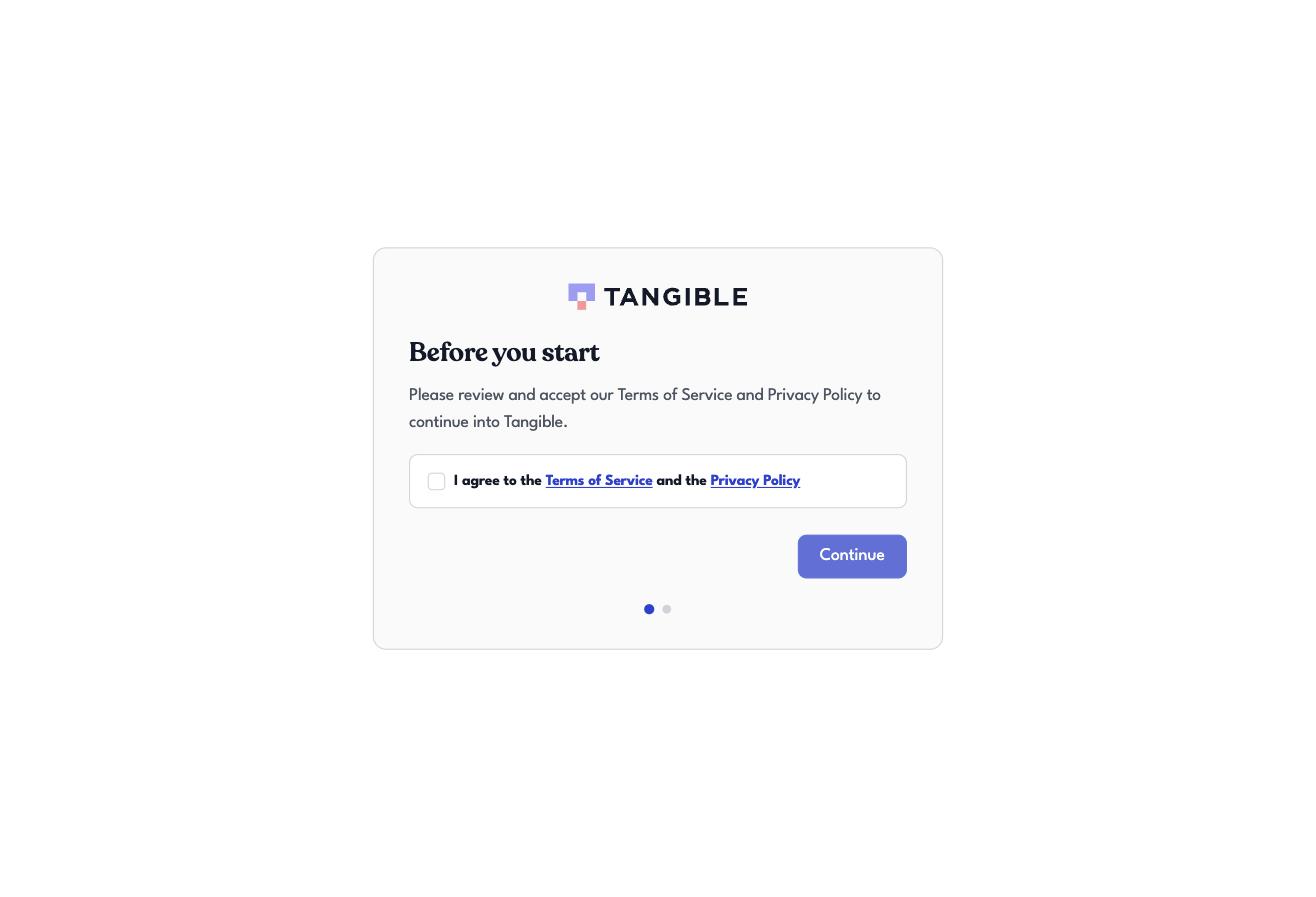
When people see it A new or returning account holder must accept current Terms of Service and Privacy Policy before entering the app.
Current words “Before you start”; “Please review and accept our Terms of Service and Privacy Policy to continue into Tangible”; checkbox “I agree to the Terms of Service and the Privacy Policy”; button “Continue”.
How to change it PR in TangibleInc/tangible-one: src/components/auth/ConsentWizard.tsx. Policy links resolve through /policies. Keep the consent action and legal meaning intact when editing the copy.
Review Julia: compare the type, button, spacing, and policy link treatment with the marketing slide. Allison: check that the action is unambiguous.
2 Marketing consent on first sign in
Capture Captured from the staging preview. The real sign-up or sign-in journey was not captured.
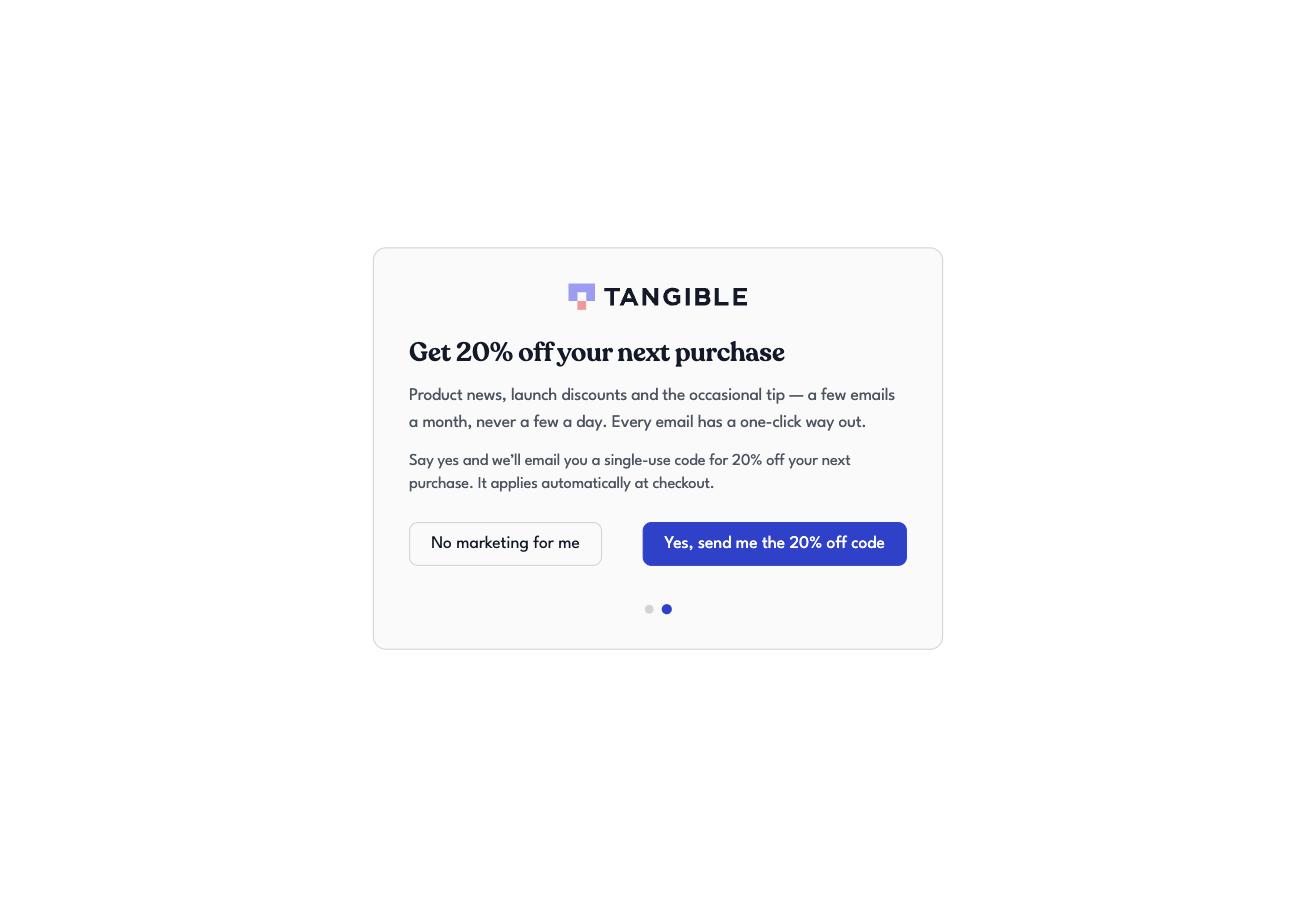
When people see it During sign-up or sign-in when the account has not yet answered the marketing question. If someone starts WordPress Connect, tangible.one opens in another tab; sign-up or sign-in there can show this same question before site approval. A reward label is conditional; without one the heading is “Stay in the loop”.
Current words “Get 20% off your next purchase”; “Product news, launch discounts and the occasional tip — a few emails a month, never a few a day. Every email has a one-click way out.” The reward note promises a single-use code that applies automatically at checkout. Choices: “No marketing for me” and “Yes, send me the 20% off code”.
How to change it PR in TangibleInc/tangible-one: src/components/auth/ConsentWizard.tsx. Reward eligibility and label come from src/components/auth/useMarketingStep.ts and the marketing reward backend. Review the promise against actual coupon rules before changing it.
Review Allison: one consistent reason to opt in. Julia: marketing slide design and the transition from Terms, including when sign-in was opened from WordPress Connect. Keep “No” clear and equal in meaning.
3 Subscriber confirmation landing page
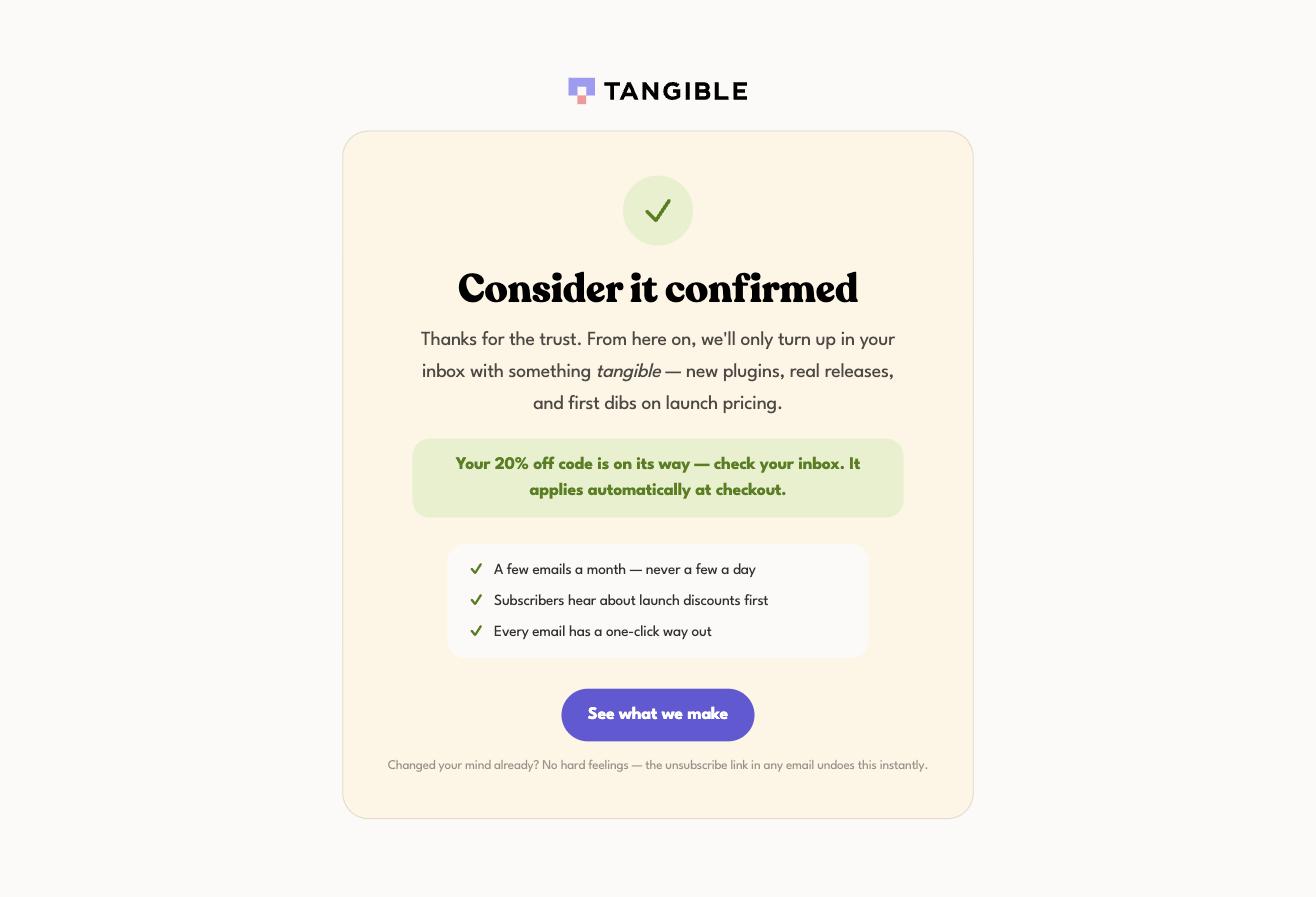
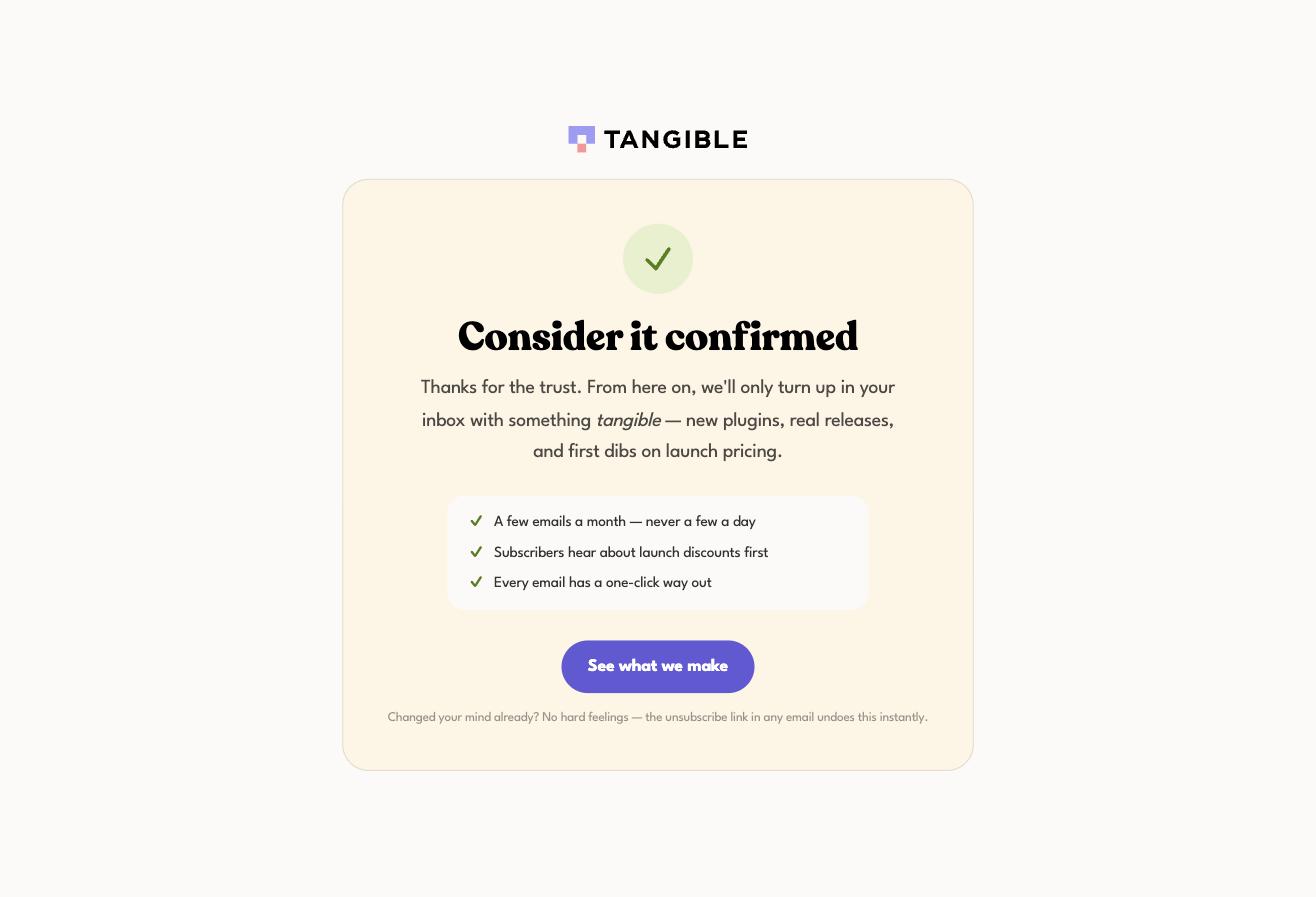
Capture Two captured variants: reward and no reward. These are public page views.
When people see it After a person clicks the Bento confirmation link and arrives at /subscriber-confirmed. Reward wording depends on the reward query parameter.
Current words “Consider it confirmed”; “Thanks for the trust”; a short promise about new plugins, releases, and launch pricing; “A few emails a month”; “Every email has a one-click way out”; button “See what we make”. Reward variant: “Your 20% off code is on its way — check your inbox. It applies automatically at checkout.”
How to change it PR in TangibleInc/tangible-one: src/components/marketing/SubscriberConfirmedPage.tsx. The page is anonymous and presents confirmation; Bento’s click flow performs the subscription. Do not put the actual code in the URL or page.
Review Allison: check the reward promise against email timing. Julia: the warm cream card, mint check, and pill CTA differ from the app wizard; decide whether that difference is intentional.
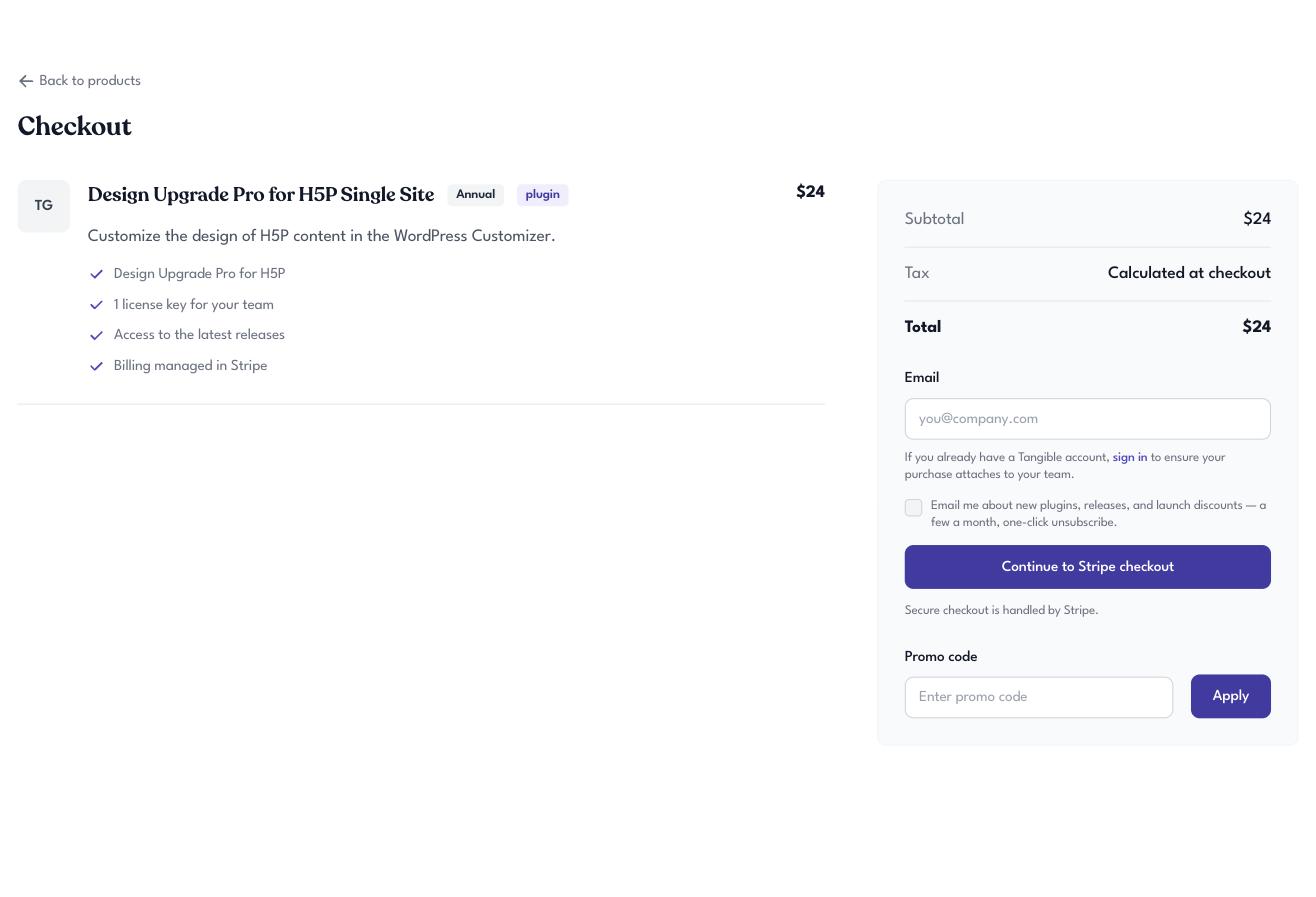
4 Guest checkout before Stripe
Capture Guest checkout captured. Reward-applied checkout and the hosted Stripe page were not captured.
When people see it A visitor opens /checkout for an offer and supplies an email before continuing to Stripe.
Current words The screenshot has a separate unchecked marketing checkbox: “Email me about new plugins, releases, and launch discounts — a few a month, one-click unsubscribe.” It does not mention the 20% reward. The main action is “Continue to Stripe checkout”.
How to change it PR in TangibleInc/tangible-one: src/components/checkout/CheckoutSummary.tsx. Keep the recorded consent wording in sync with convex/marketing/checkoutConsent.ts. Offer blurb/features are catalog content; checkout mechanics and checkbox are code.
Review Allison: decide whether checkout should make the same reward promise as the wizard and Bento flow. Julia: check placement and visual weight of an optional checkbox next to payment.
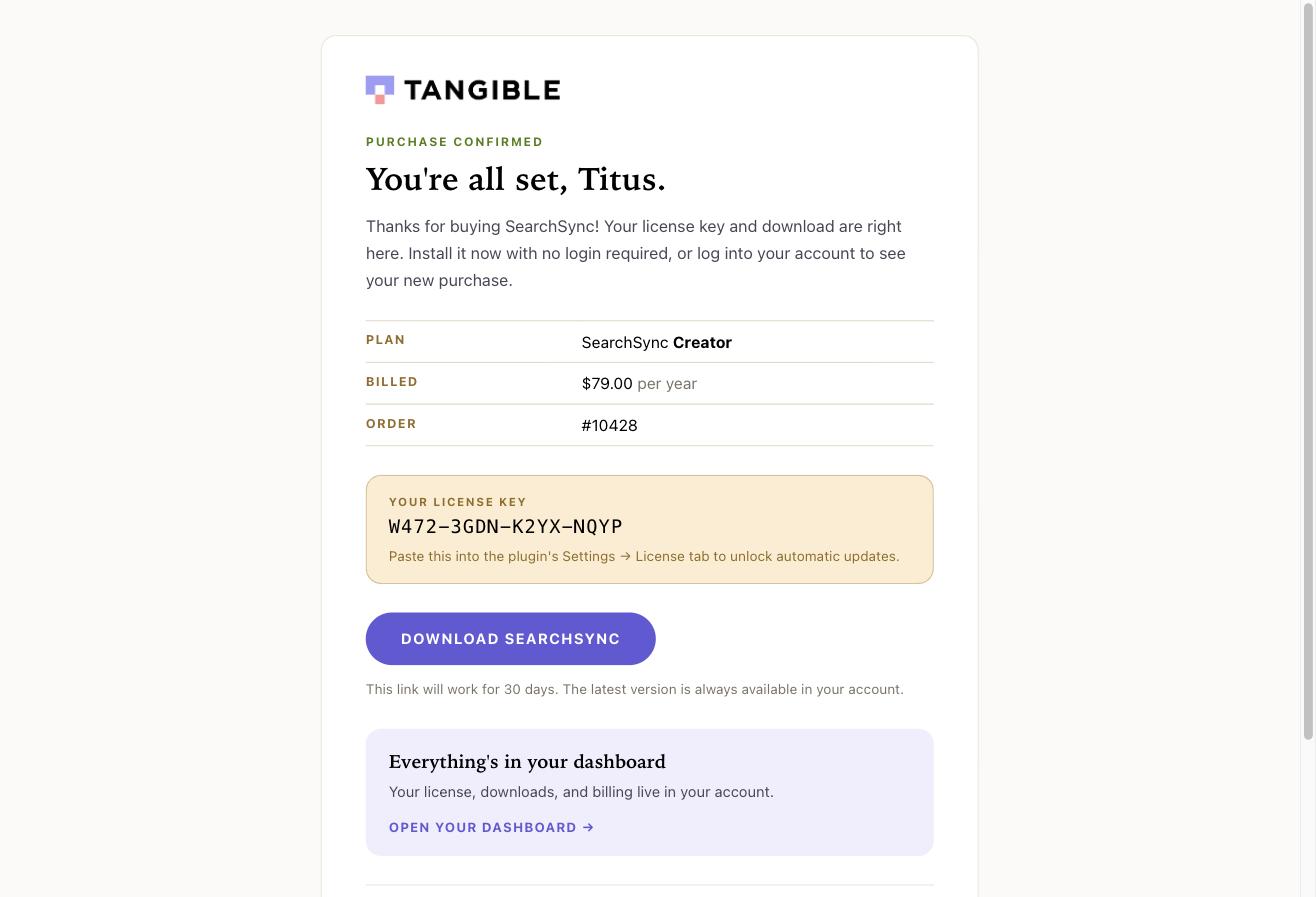
5 Purchase confirmation email
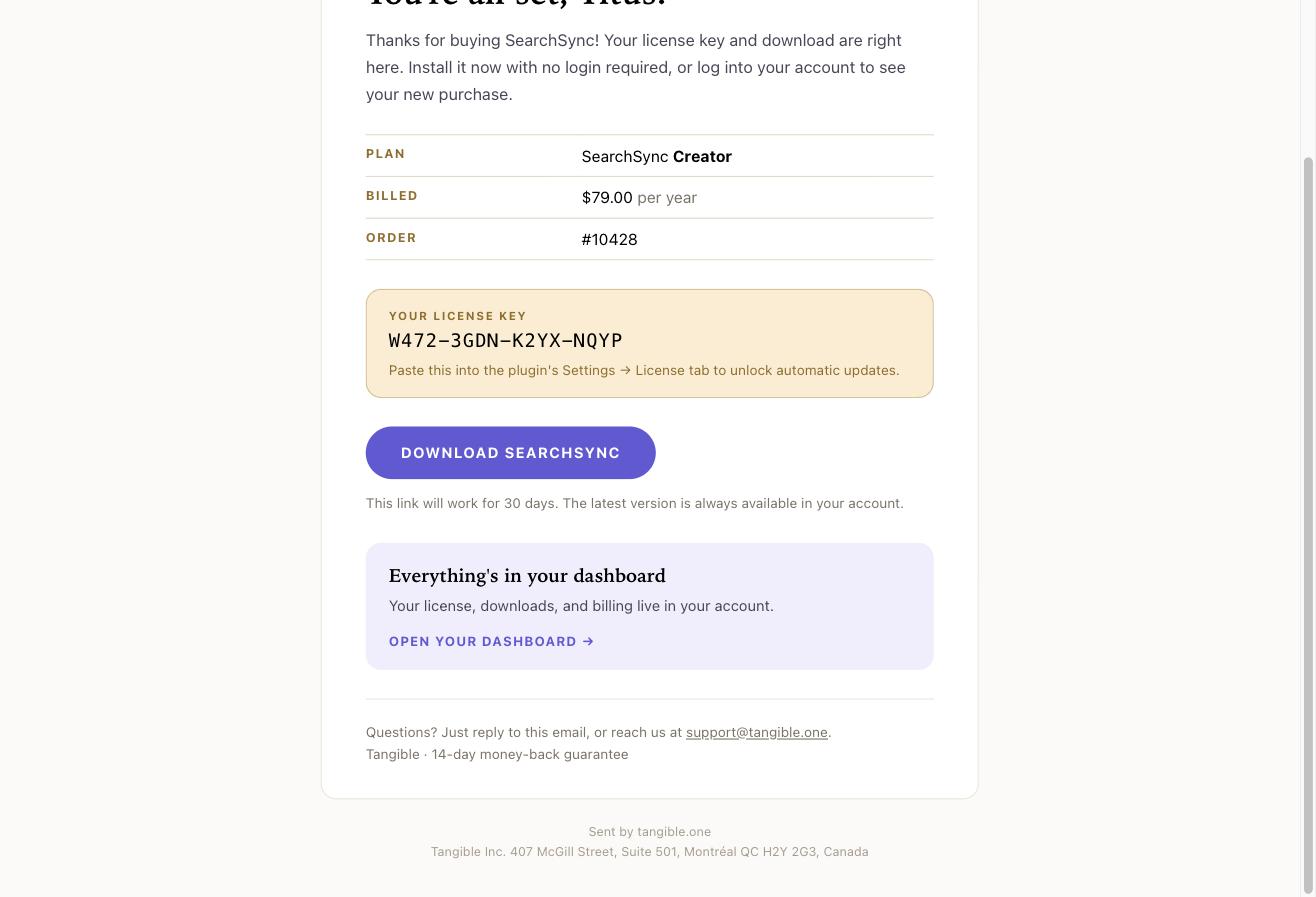
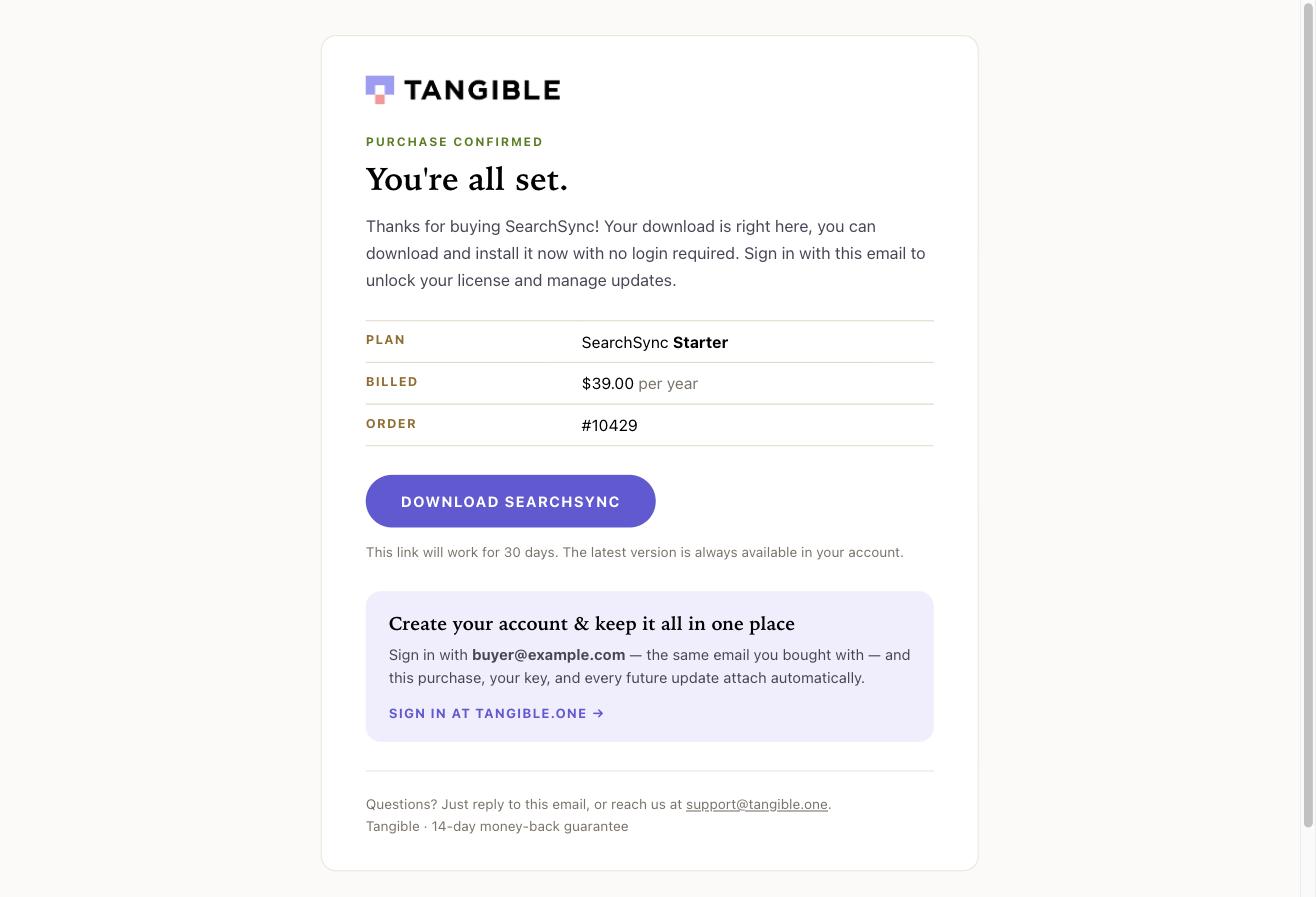
Capture Three captures: signed-in buyer top and bottom, and guest buyer. These are local renders from the actual email code, not messages sent to a customer.
When people see it Sent after a purchase. A signed-in buyer sees a licence key and dashboard link; a guest sees a download and instructions to sign in to claim the key.
Current words Shared heading “You’re all set.” The signed-in variant says “Your license key and download are right here”; the guest variant says “Sign in with this email to unlock your license and manage updates.” Download link validity is stated as 30 days.
How to change it For copy, use tangible.one admin → Emails → Templates → Purchase confirmation (key purchase_confirmation). In TangibleInc/tangible-one, slot defaults are in convex/email/registry/billing.ts; structural and layout changes require a PR in convex/email/purchaseConfirmation.ts and shared email parts. Preview both with-key and no-key variants.
Review Allison: preserve the licence, download, and claim instructions. Julia: compare branded transactional design with the plain Bento messages. Do not turn a purchase receipt into a second opt-in prompt without a deliberate decision.
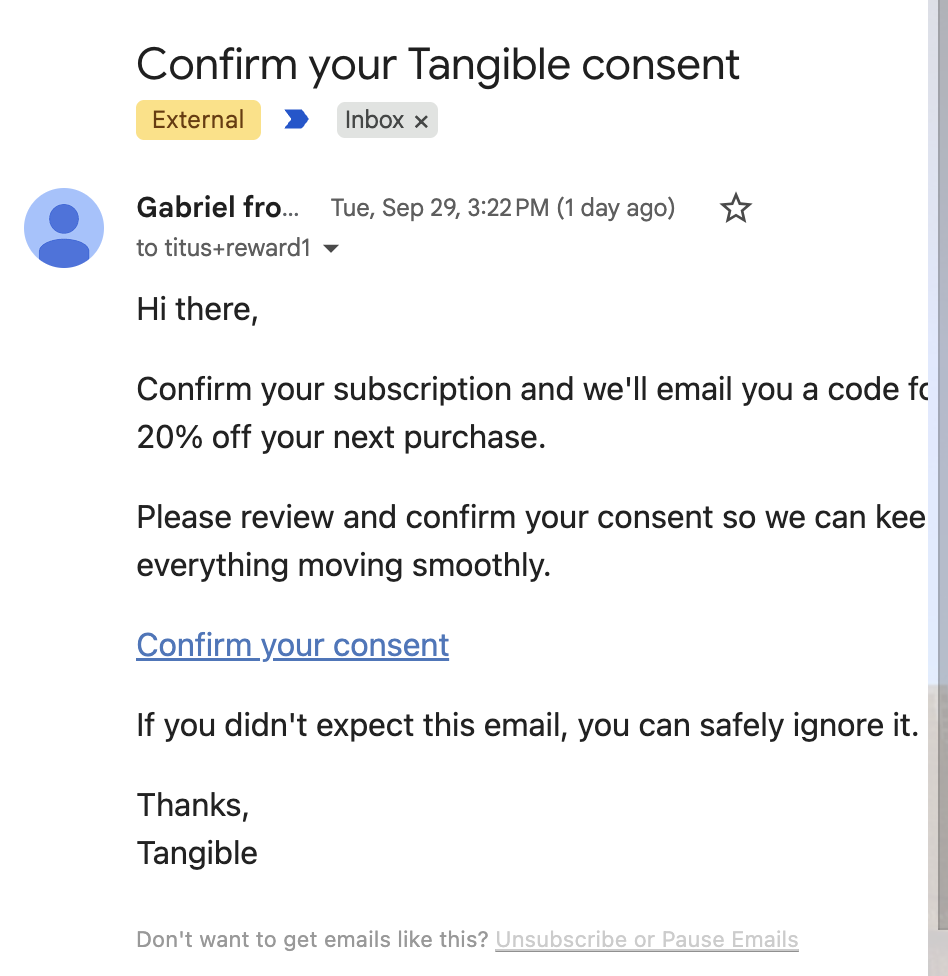
6 Bento confirmation request email
Capture Captured from a received staging email. The screenshot is cropped on the right.
When people see it Sent by the staging double-opt-in flow after a person requests marketing email.
Current words Subject “Confirm your Tangible consent”. The readable body promises a 20% code, then says “Please review and confirm your consent so we can keep everything moving smoothly.” Link: “Confirm your consent”.
How to change it Edit in Bento staging: the double-opt-in flow, confirm email template 112067 in the 30 September capture inventory. Confirm the flow and template ID in Bento before saving; the production flow is separate. The link must land on tangible.one/subscriber-confirmed, not Bento’s generic confirmation page.
Review Allison: remove internal “consent” and staging phrasing from customer copy. Julia: give this a designed email treatment and check the sender name and address with the team.
7 Bento consent confirmed email
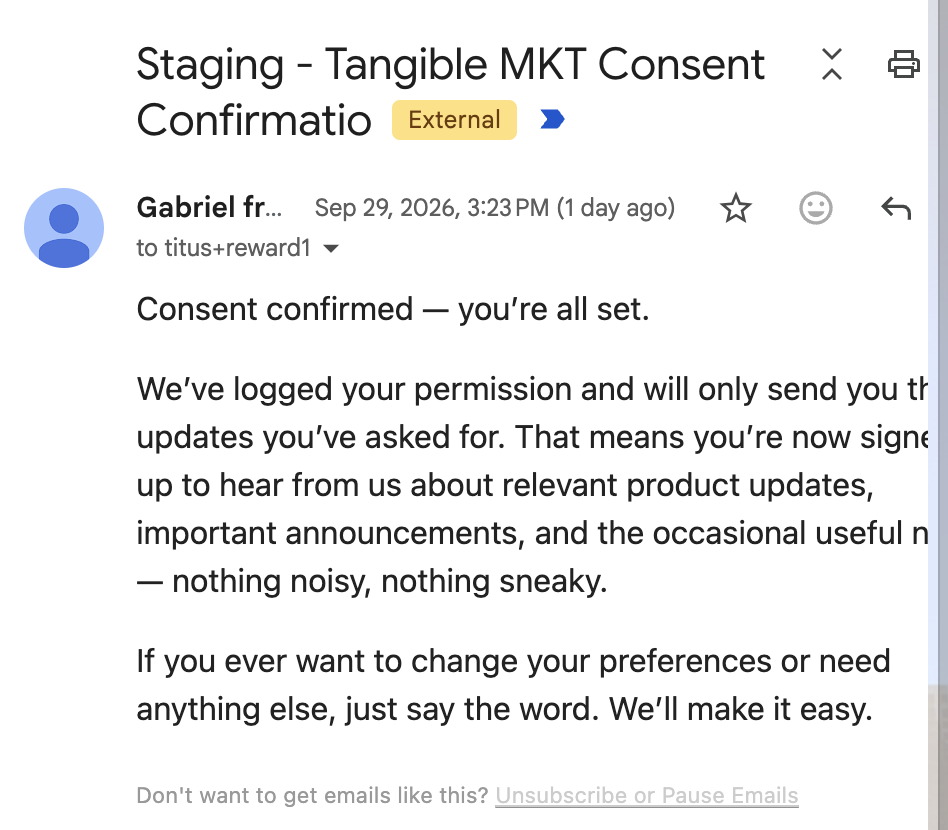
Capture Captured from a received staging email. The screenshot is cropped on the right.
When people see it Sent after the confirmation click. It is separate from the reward code email.
Current words Subject begins “Staging - Tangible MKT Consent Confirmatio”. Body begins “Consent confirmed — you’re all set” and talks about having logged permission and sending requested updates.
How to change it Edit in Bento staging: consent-confirmed or welcome email template 112068 in the 30 September capture inventory. Check whether this email is still needed when a reward email follows; change the flow if consolidating, rather than only changing the copy.
Review Allison: remove “staging”, “MKT”, and administrative consent language. Julia: make its structure coherent with the confirm and reward emails.
8 Bento reward code email
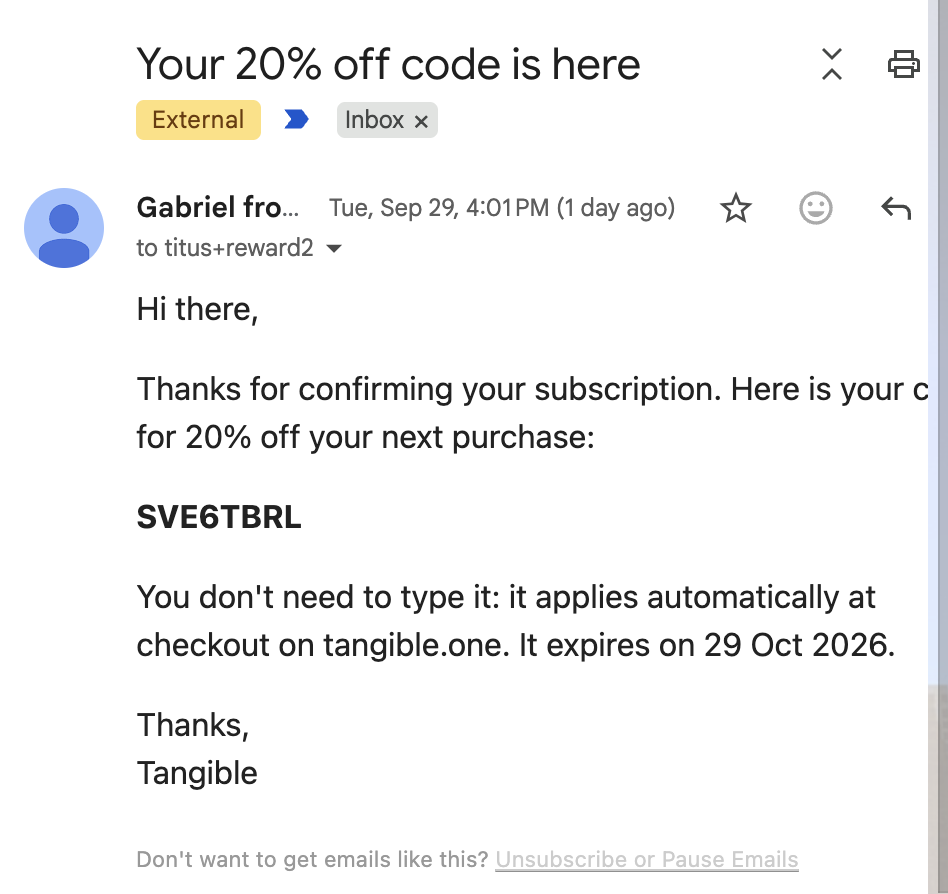
Capture Captured from a received staging email. The code shown is a test example; do not reuse it in copy.
When people see it Sent after reward grant for a confirmed, eligible subscriber.
Current words Subject “Your 20% off code is here”. The body says the code applies automatically at checkout on tangible.one and gives an expiry date.
How to change it Edit in Bento staging: reward email template 112648 in the 30 September capture inventory. Preserve the dynamic code and expiry fields. Check the flow against the reward grant event and actual expiration rule before changing the promise.
Review Allison: explain what the code applies to and how the customer uses it. Julia: give the code a readable, branded treatment; confirm sender identity.
9 Plugin consent during WordPress setup
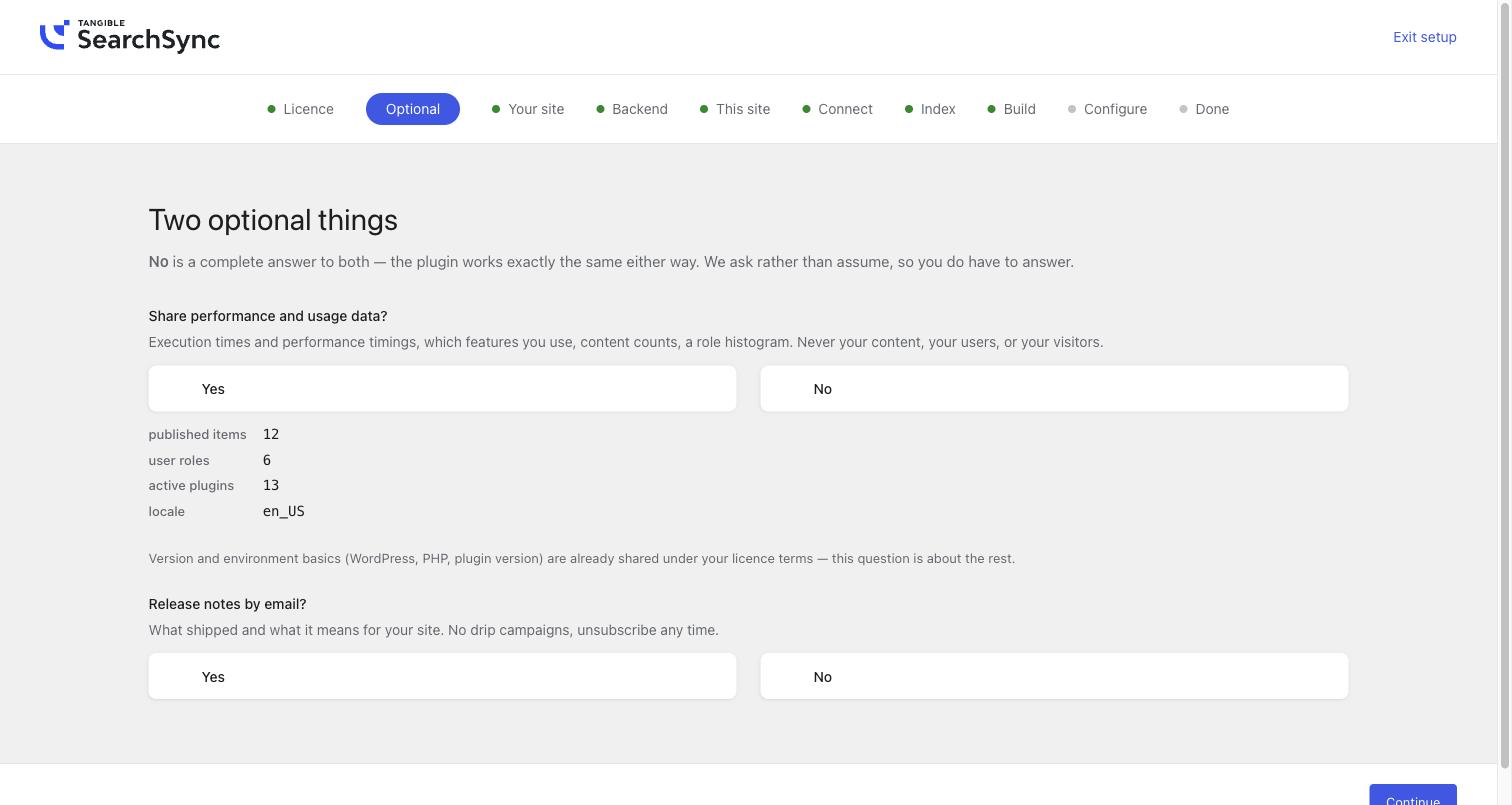
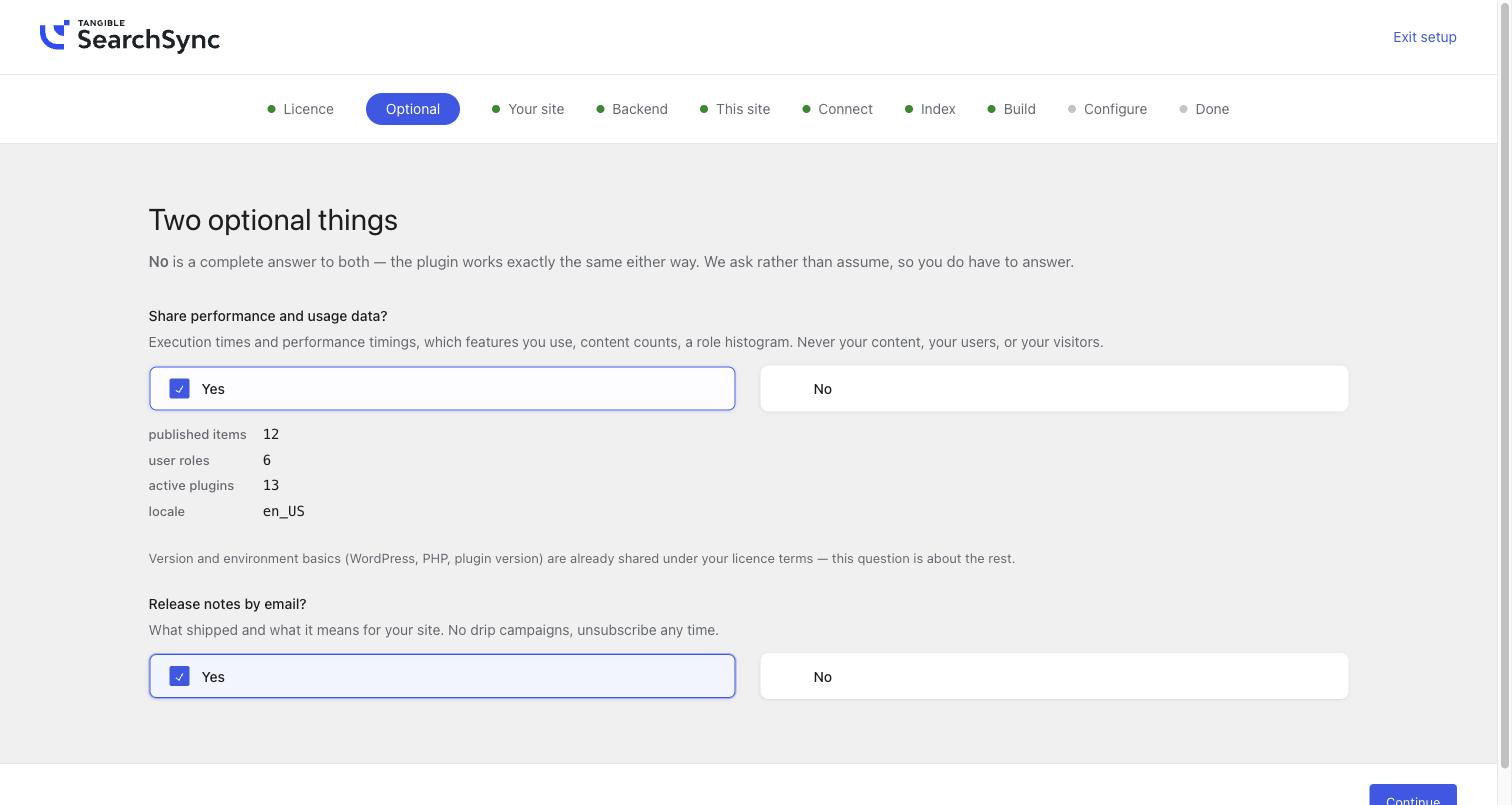
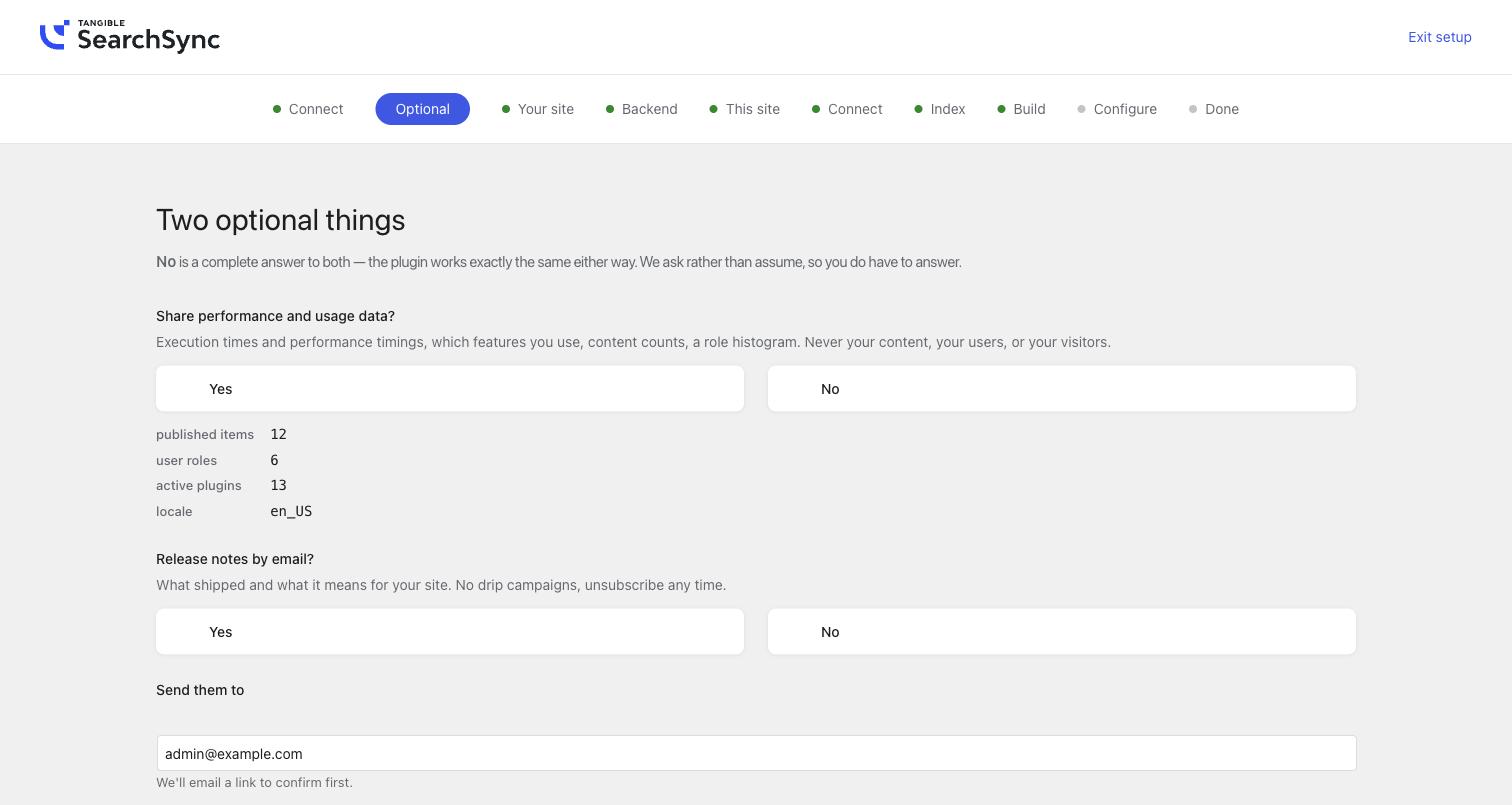
Capture Three captures: paid plugin unanswered and answered; free plugin with email field.
When people see it The framework setup asks separately for optional extended telemetry and email updates. Free or anonymous distribution asks for an email address when marketing is offered.
Current words Heading “Two optional things”. Telemetry: “Share performance and usage data?” with the actual payload facts below. Marketing: “Release notes by email?” and “What shipped and what it means for your site. No drip campaigns, unsubscribe any time.” The free plugin adds “Send them to” and “We’ll email a link to confirm first.”
How to change it PR in TangibleInc/framework: onboarding/steps.php owns these questions, payload examples, and email field. Update the consent text/version and server recording together where required. The screenshot shows this shared step inside SearchSync.
Review Allison: align the email promise with the Tangible list, or document why plugin release notes are a different list. Julia: review both decisions and the payload display. The free email field was still visible after selecting “No” in the captured flow.
10 Plugin Connect and account approval
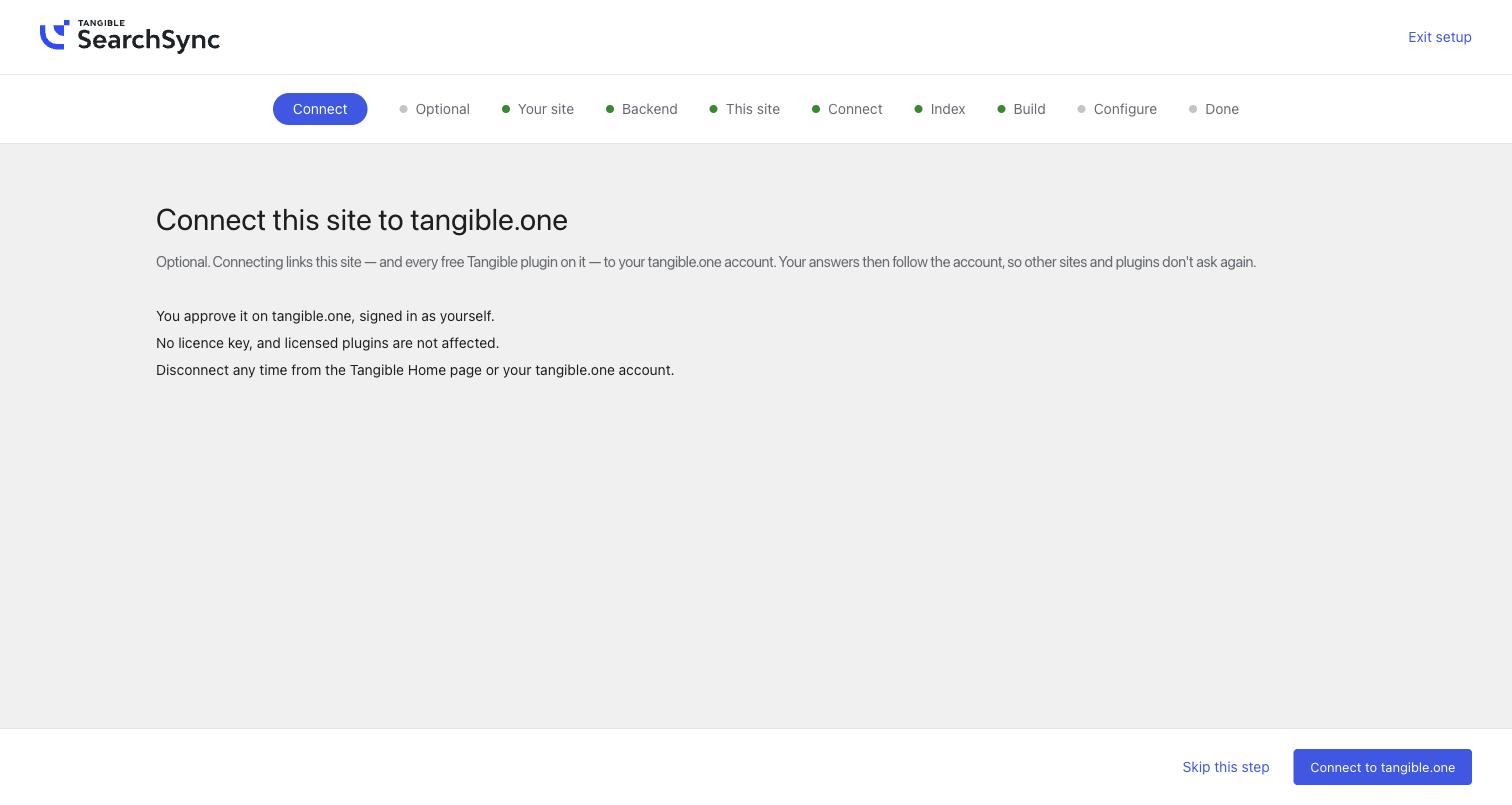
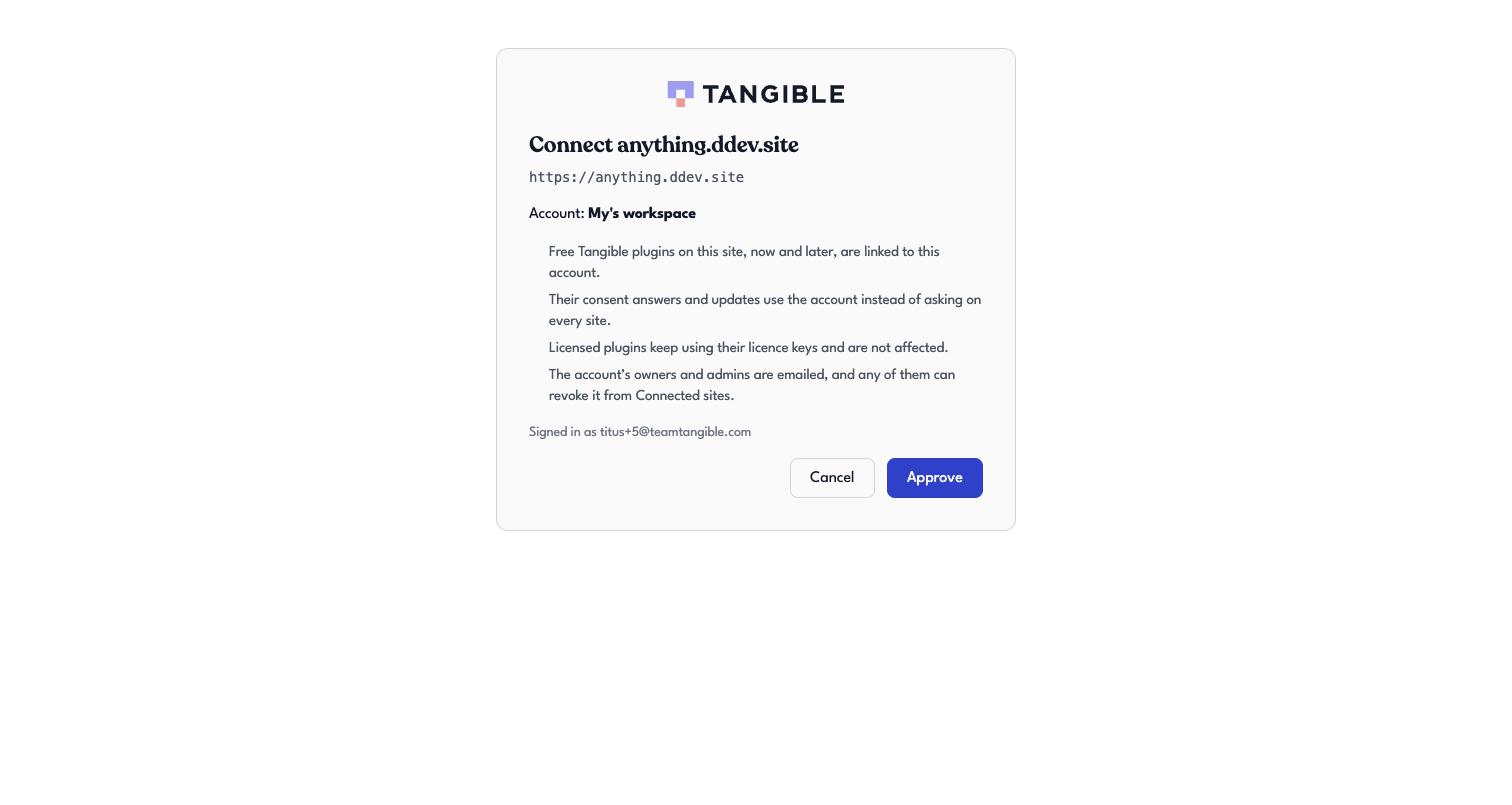
Capture Free-plugin Connect step and tangible.one approval page captured. The approval capture is from production with a local test site; it does not show sign-up or sign-in.
When people see it A free plugin offers to link the WordPress site to a Tangible account. Clicking “Connect to tangible.one” opens tangible.one in another tab. There, the person signs up or signs in, answers any outstanding consent question described in section 2, then approves the site connection on /connect/authorize.
Current words WordPress heading “Connect this site to tangible.one”; it says the step is optional, consent answers follow the account, and licensed plugins keep using keys. Approval names the site and account and says owners/admins can revoke the connection.
How to change it PR for the WordPress step in TangibleInc/framework: connect/step.php. PR for approval copy and layout in TangibleInc/tangible-one: src/components/connect/ConnectAuthorizePage.tsx and src/components/connect/connect.css. Test return-to-wizard behavior after approval before treating the flow as finished.
Review Allison: make scope and revocation plain. Julia: compare both sides of the handoff. The captured account label “My’s workspace” needs investigation before using the screenshot externally.
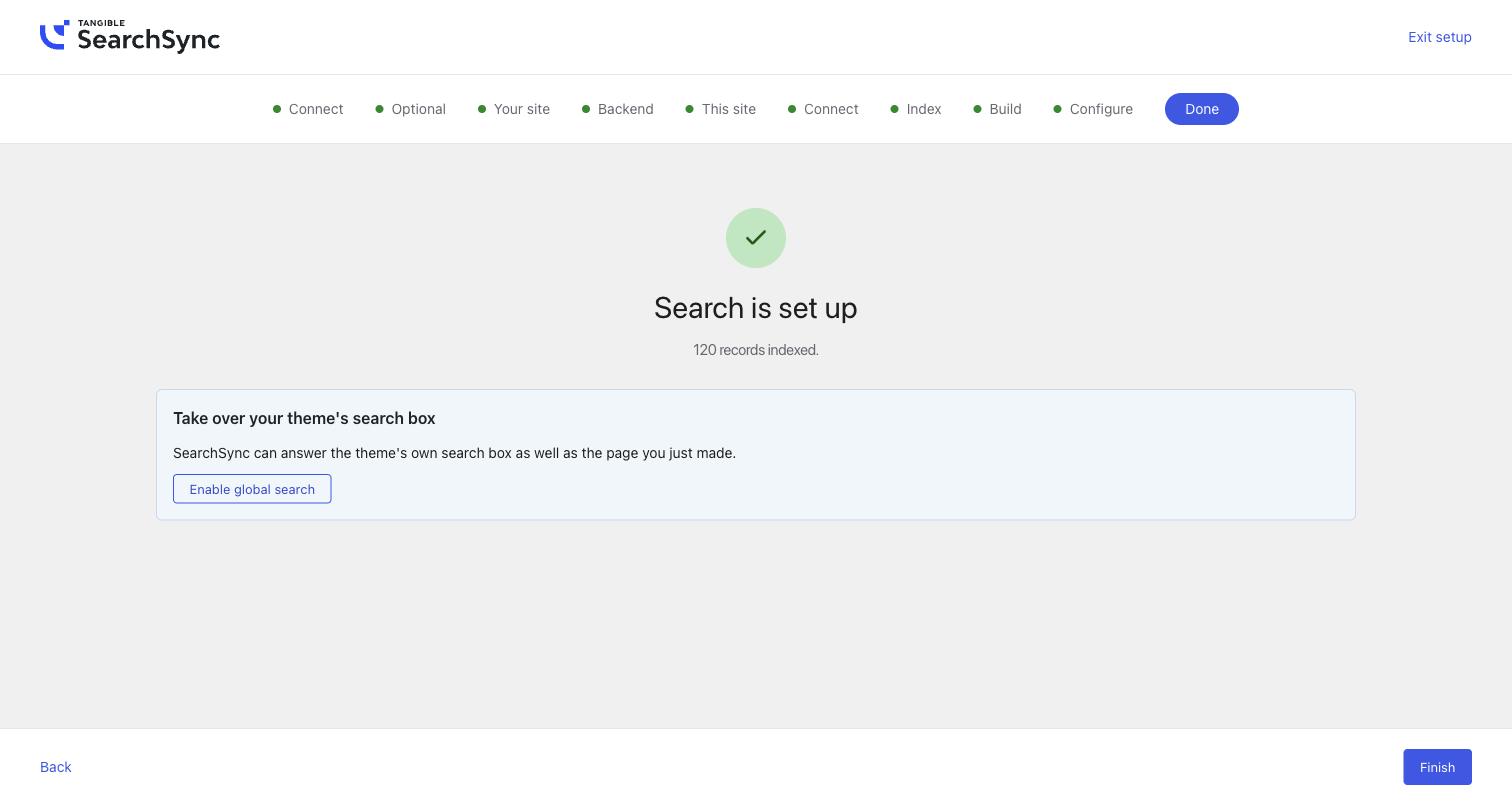
11 Shared Done copy and SearchSync example
Capture The screenshot is SearchSync’s custom Done step on a local WordPress test site. SearchSync replaces the framework default, so its wording and next actions are not the shared template for other plugins.
When people see it The Tangible framework adds a terminal Done step to every registered plugin wizard unless that plugin supplies a step with id done. Plugins can also shape the framework default through the tangible_onboarding_done filter. SearchSync supplies its own Done step so it can report real indexing state and suggest its next action.
Current words Framework default: “[Plugin] is ready”, “[Plugin] is set up”, and “Go to Tangible Home”; a plugin may add “What people usually do next” links. The captured SearchSync state instead says “Search is set up”, “120 records indexed”, and “Take over your theme’s search box”, with “Enable global search” and “Finish”. When SearchSync has published a search page, its custom step can also offer “View your search page” and “Fine-tune the view”.
How to change it For the shared Done screen, open a PR in TangibleInc/framework: onboarding/steps.php. For SearchSync’s replacement step, open a PR in TangibleInc/tangible-searchsync: includes/onboarding.php. A plugin can also supply its summary, main action, and next links through the framework’s tangible_onboarding_done filter.
Copy brief Replace the repeated “is ready / is set up” pair with one clear completion message and one useful next action. Possible shared starting copy: heading “You’re done setting up [Plugin]”; body “Your choices are saved. You can return to this plugin from Tangible Home.”; button “Go to Tangible Home”. A plugin with a real result should say what happened instead—for example, SearchSync can report the indexed record count. Do not claim indexing, publishing, or a live connection in the shared fallback.
Review Allison: write the shared fallback first, then review plugin-specific outcomes and next actions. Julia: review the completion hierarchy across the shared screen and SearchSync. Keep Done calm; avoid another newsletter ask immediately after consent.
12 Password reset request
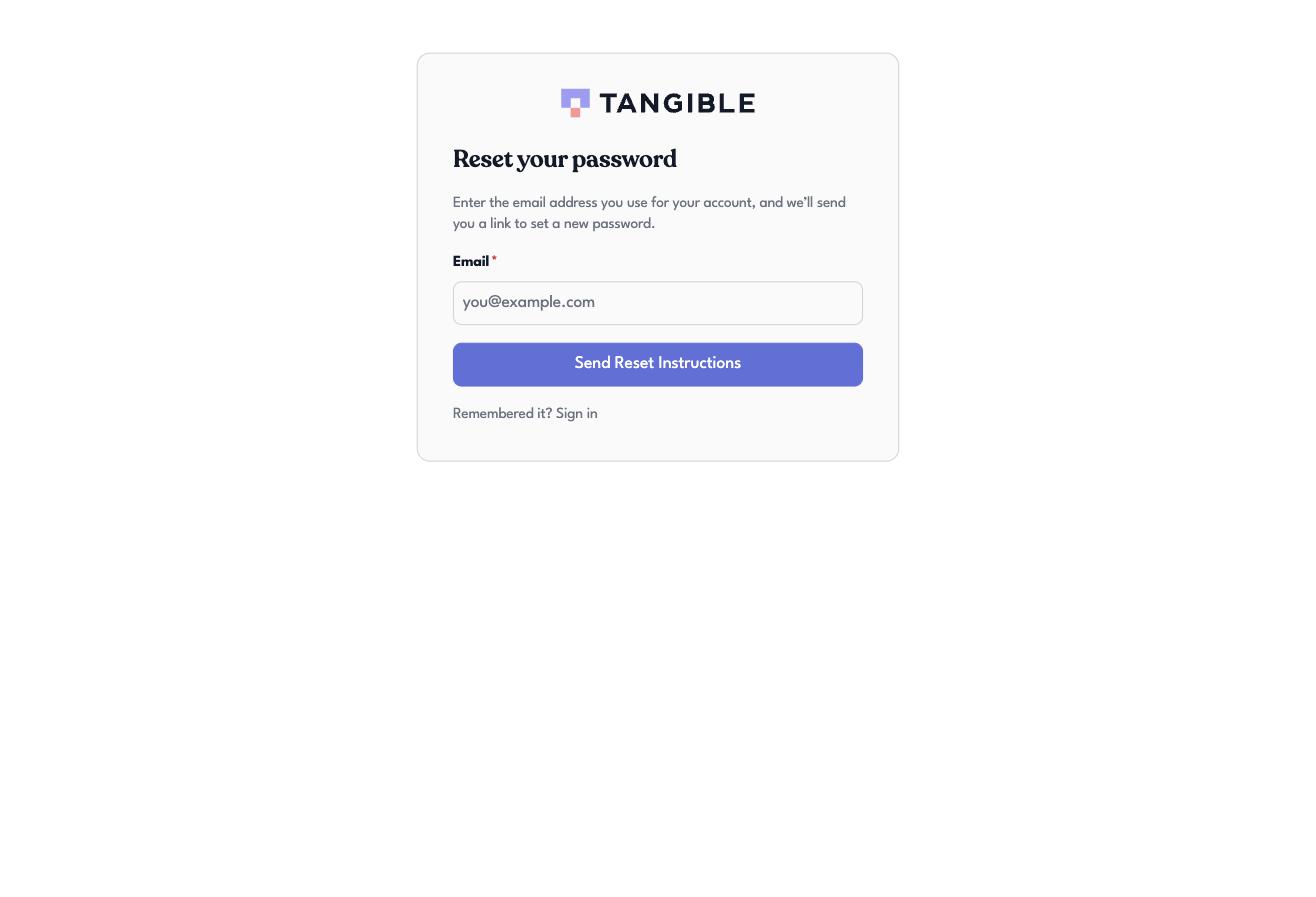
Capture Public page captured. This is the Tangible-controlled entry to the WorkOS recovery flow.
When people see it An account holder, including an LDX migrated user, requests a new password at /reset-password. The page accepts an email query parameter for prefill.
Current words “Reset your password”; “Enter the email address you use for your account, and we’ll send you a link to set a new password”; button “Send Reset Instructions”; “Remembered it? Sign in”.
How to change it PR in TangibleInc/tangible-one: src/components/auth/ResetPasswordPage.tsx. WorkOS sends the reset email and hosts password entry; those are separately controlled surfaces. Keep this page focused on recovery.
Review Allison: check trust and clarity for someone locked out. Julia: align this page with the wizard without distracting from the reset action.
States still to capture or decide
- Welcome mat and sidebar 20 percent ask: campaign slots exist, but these specific placements and suppression rules were not configured at capture time. Decide eligibility, timing, and mutual exclusion before asking Julia for final design. Campaign authoring is in tangible.one admin; TangibleInc/tangible-one seeds optin_marketing in convex/marketing/defaultCampaigns.ts.
- Real sign-up or sign-in journey on staging, including one opened from WordPress Connect in another tab: the previews in sections 1–2 show the consent questions, but the full journey into site approval was not captured.
- Reward-applied checkout, hosted Stripe page, and /checkout/success: require a test purchase. The success page is in TangibleInc/tangible-one at src/routes/checkout/success.tsx; the declared checkout-success.optin slot was not rendered in the captured implementation.
- Bento unsubscribe page and newsletters/broadcasts: no screenshots in the saved set. Inspect them in Bento if this handoff is to cover the full email lifecycle.
- WorkOS reset email and hosted sign-in/password screens are outside the freely editable Tangible copy surfaces agreed for this handoff. Branding options should be reviewed separately if needed.
Source note: screenshots were captured on 30 September 2026. Repository paths identify the code responsible for the captured states; verify the current code before opening a PR. Bento template IDs and environment status came from the capture inventory; recheck in Bento before editing.
Sample prompt for your assistant
Copy this prompt, replace the bracketed fields, and attach this handoff document.
Work on section [number and title] of the attached Tangible customer surface handoff. I am reviewing it as [Allison for copy / Julia for design / engineer for implementation]. The screenshots are evidence from 30 September 2026, so first verify the current customer journey, wording, and state in the relevant product or editor. If the live surface differs from the screenshot, tell me what changed before proposing edits.

Use the GitHub repository named in that section: TangibleInc/tangible-one, TangibleInc/framework, or TangibleInc/tangible-searchsync. For a code change, make a focused PR in the named repository. For a Bento or tangible.one Emails editor change, identify the exact flow or template and prepare the revised text there. Do not publish, enable a flow, or send a message without my explicit instruction.

Improve the copy or design for the person seeing this screen. Preserve the meaning of consent choices, account and licence instructions, and any reward promise. Check the relevant yes/no, free/paid, guest/account, and reward/no-reward variants. Show me the before and after wording, a short reason for each change, and a screenshot or preview of the result. Flag decisions that need Allison or Julia. If a state was not captured, say exactly how to reach it rather than inventing its appearance.